Getting invited and signing in
There are no usernames on ChuckTrack and nothing to sign up for. Joe mints you a one-time invite code and sends it to you.
One box, two things it can hold
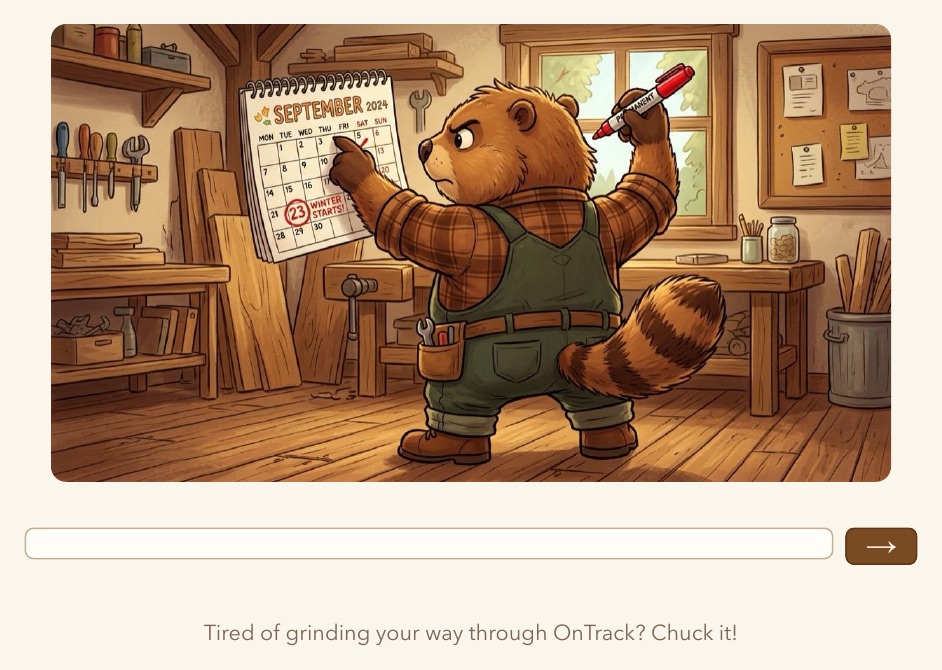
The login page has a single field. Paste in the invite code you were sent and press the arrow. ChuckTrack can tell an invite code from a returning key just by counting the characters, so there is nothing to choose.
Your OnTrack login, once
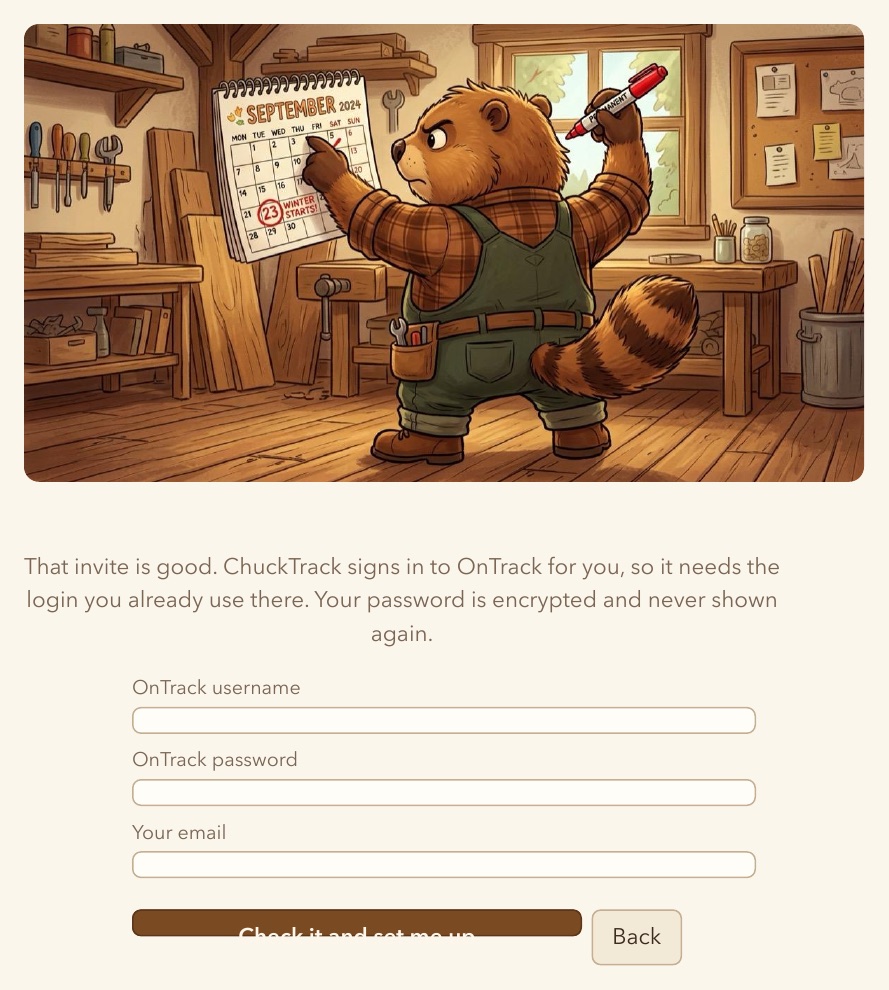
A good invite code leads to one more form: the OnTrack username and password you already use today. ChuckTrack signs in to OnTrack as you, so it needs the same credentials OnTrack does. The password is encrypted at rest and never shown again, not even to you.
The key
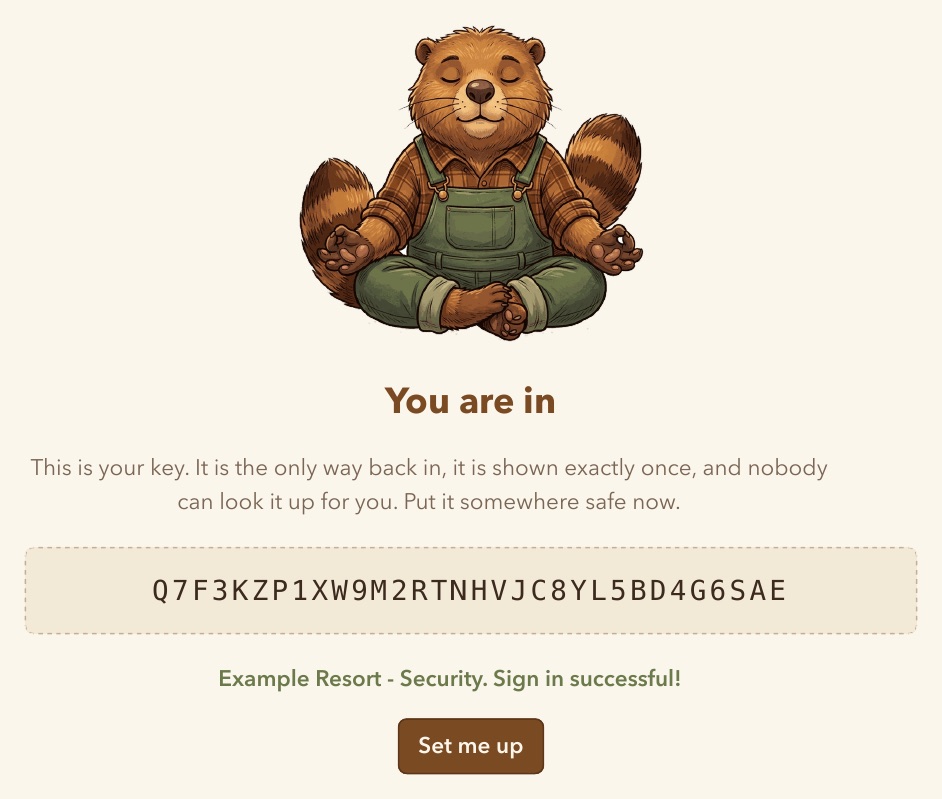
Once that checks out, ChuckTrack shows a 32-character key. That key is the whole account from then on - there is no username, no password reset, no email link. It is shown exactly once, so copy it somewhere safe before moving on. Coming back later means pasting this same key into the login page's one box. Lost it? Whoever invited you can mint a fresh invite code and you make a new account. Your nicknames, banked weeks and notes belong to the old account, so keep the key.
Setting up
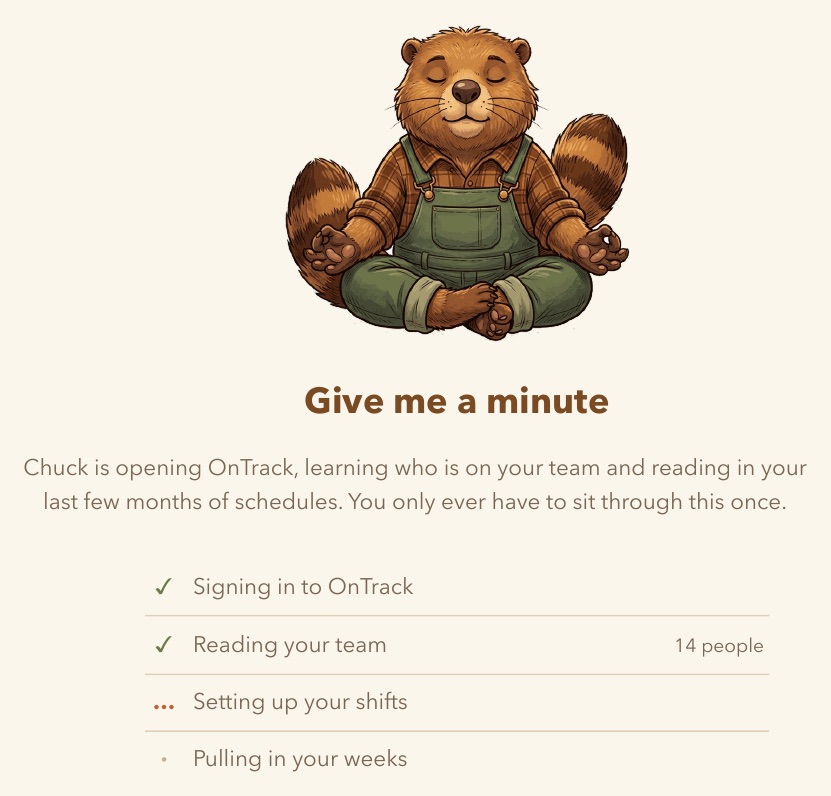
The first time in, ChuckTrack spends about a minute reading your team from OnTrack, inventing a starting nickname for everyone, laying down a handful of common shifts, and pulling in the last few months of schedules so the People page's hiding rule has something to go on. You only sit through this once.