
The leadership copy
Some properties keep a spreadsheet of their own that lists a few people's week alongside other departments: the director and managers, say, or whoever is on call. Someone retypes those cells every week. The leadership copy does that retyping in one click: it copies the chosen rows off the grid as a block of cells that pastes straight into the spreadsheet.
Choosing who is in it
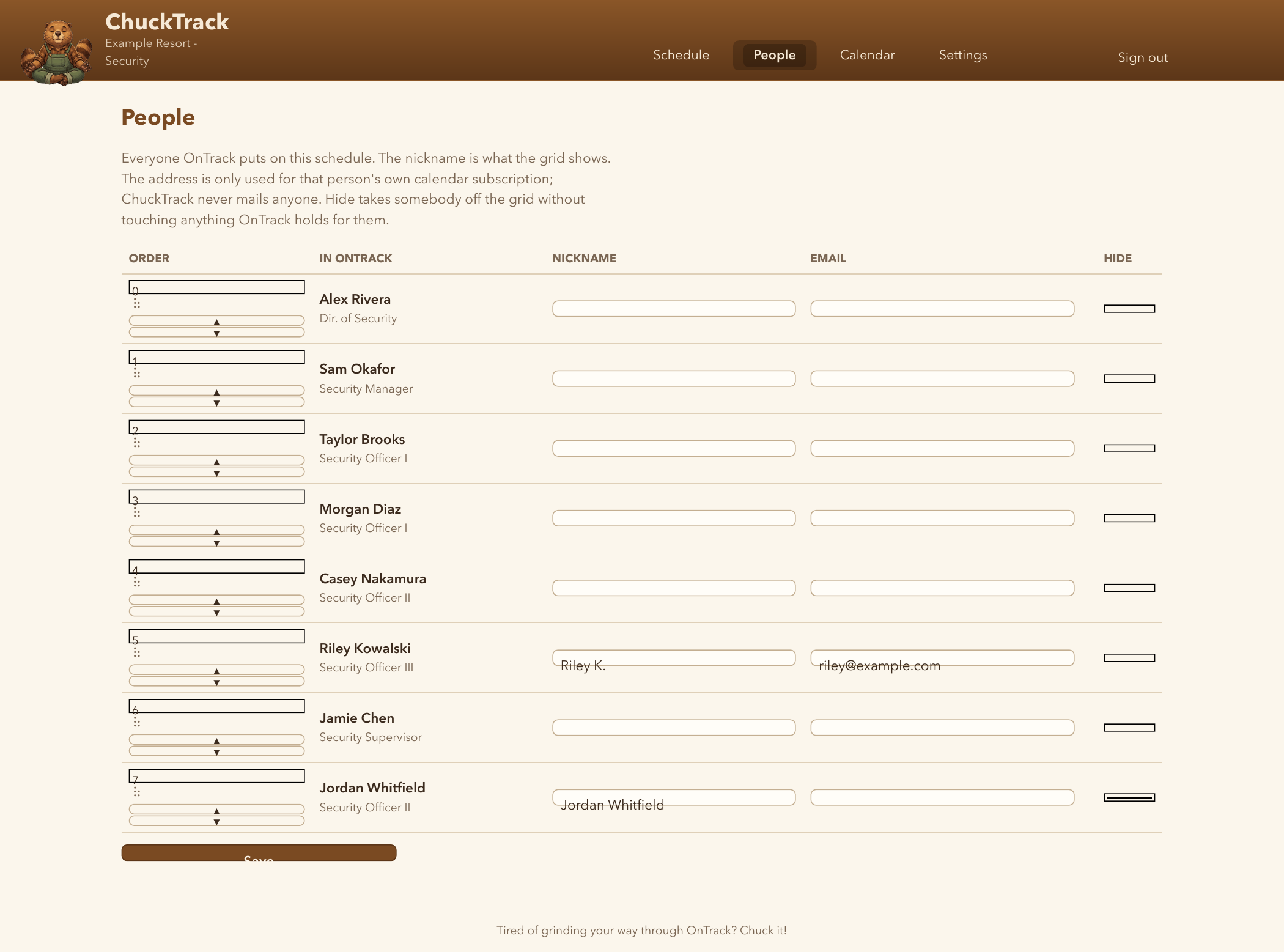
On the People page, tick Leadership copy for each person the spreadsheet lists, and save. Nobody is ticked until you do this, and the button does not appear on the grid until at least one person is. The rows copy in the order the grid shows them, so if the spreadsheet lists people in a different order, reorder them on the People page to match.
Copying a week
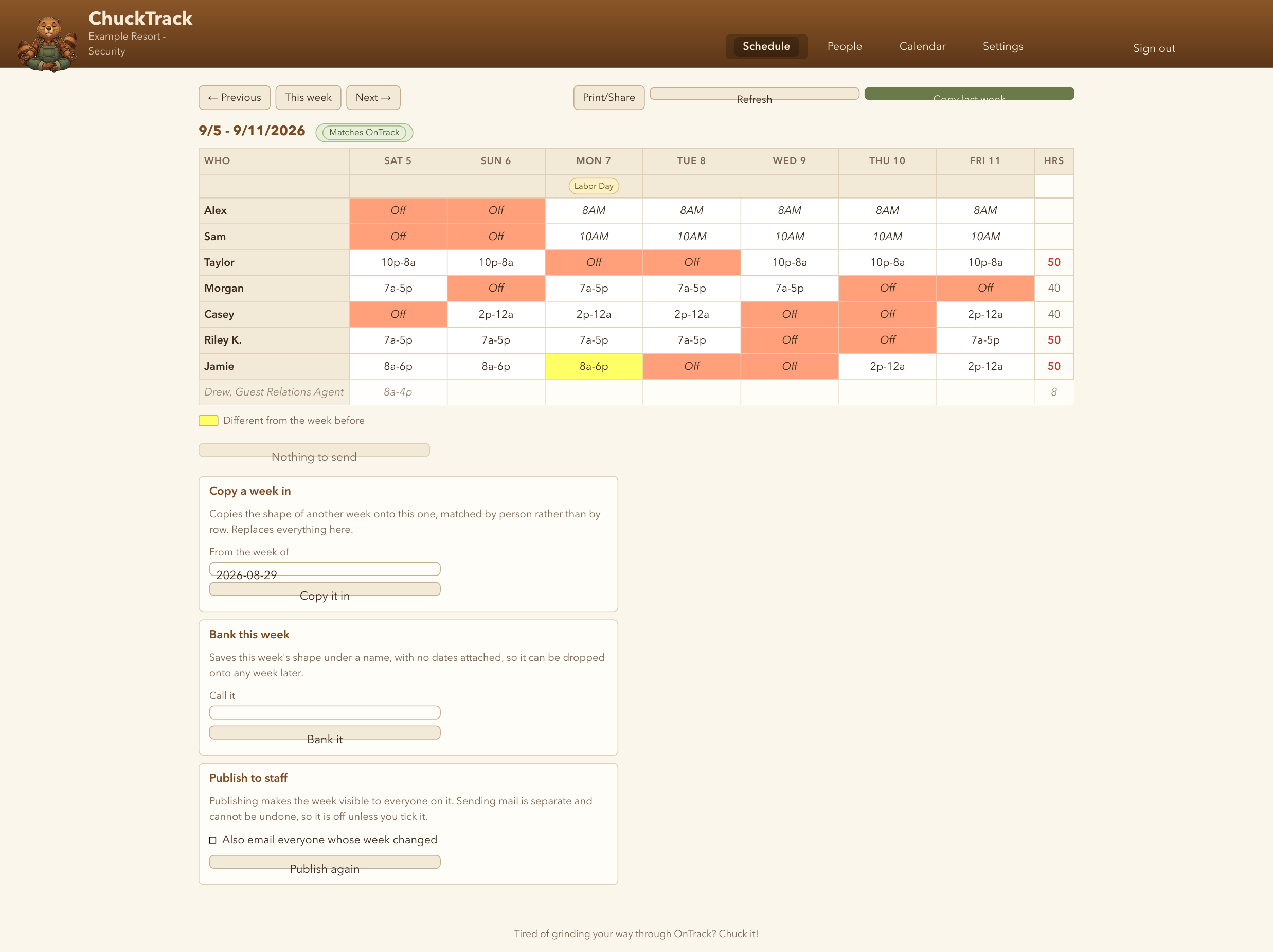
Open the week on the grid and click Copy leadership in the week bar. It copies one row per ticked person, seven days across in the grid's own day order, with no names, no dates and no hours column. A start-time marker is copied without the length ChuckTrack works out for it, so 8AM 9h goes in as 8AM, and a label such as Off goes in as written. An empty cell copies as an empty cell. The button reads what is on screen at that moment, so changes not yet sent to OnTrack come along.
Pasting it
In the spreadsheet, click the top-left cell of the block the week occupies, where the first ticked person's first day goes, and paste. The cells fill in one row per person, one column per day, over whatever was there. Excel, Numbers and Google Sheets all take it the same way, because it is plain tab-separated text.
If the spreadsheet's week starts on a different day from the schedule's, or lists people in a different order, the block will land shifted; the fix is to line up the People page's order with the spreadsheet's, and to paste into the column the schedule's first day belongs in.