
The schedule
The schedule is the grid: one row per person, one column per day, Saturday through Friday. It is what you see first after signing in, and it is where almost everything happens.
Reading the grid
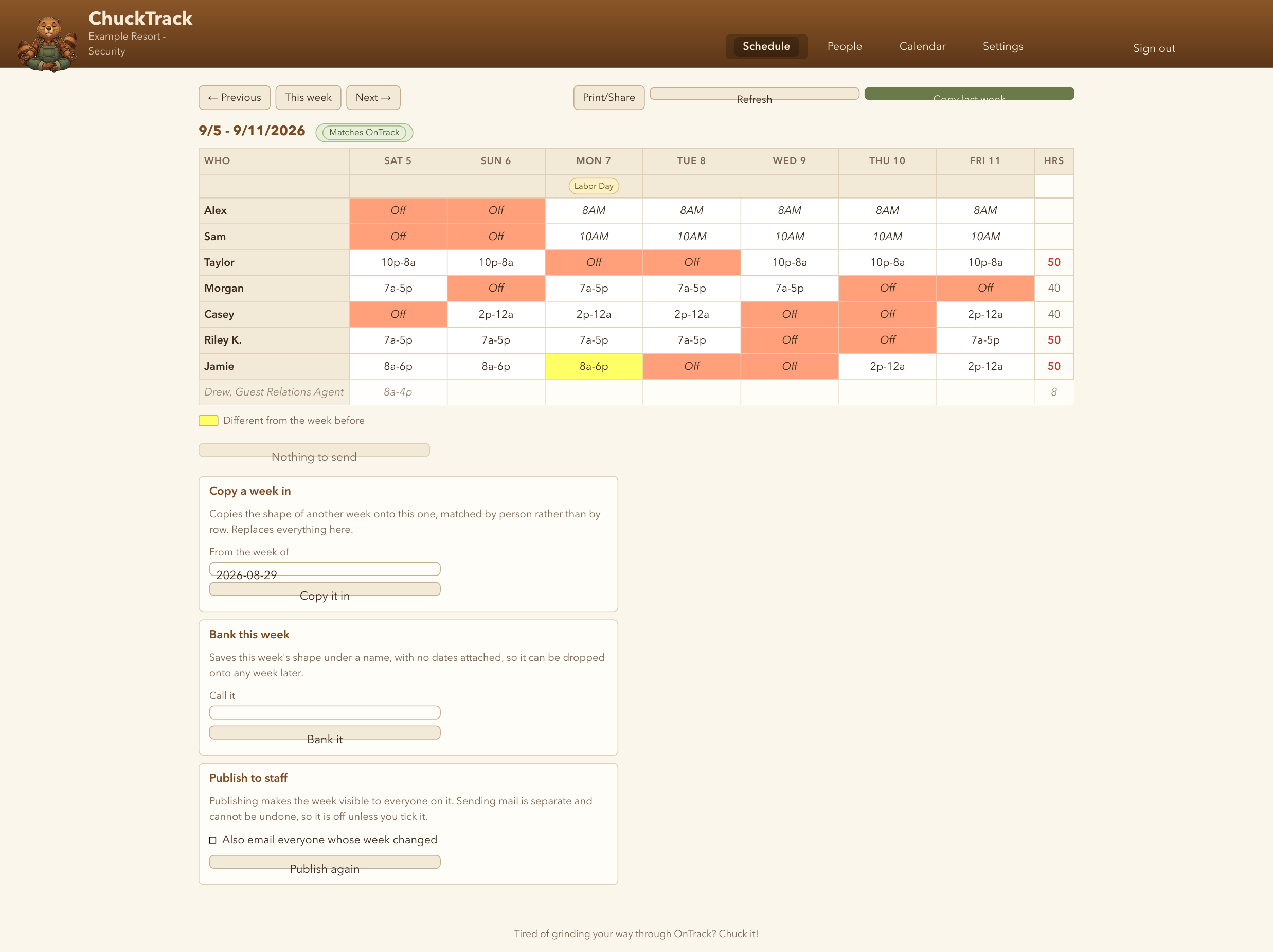
A salmon-coloured cell is Off. A cell in some other colour is one you or OnTrack painted on purpose, and that choice always wins. A plain yellow cell, like Alex's Monday here, means this day is different from the same weekday last week. It is not a colour anyone chose, just a flag for what changed, which is why the legend under the grid only shows up when something is actually yellow. A greyed-out row below the main list is someone scheduled elsewhere in the hotel: you cannot edit it, but you can see it, so you don't double-book them against a shift they already have.
A director or manager, anyone marked salaried, doesn't work a fixed shift, so their row shows a start-time marker like “8AM” instead of a block of hours. The Hrs column counts each marker as a 10-hour day when they are on four days or fewer that week, and an 8-hour day when they are on five or more, which is why Casey shows 40 here. A total over 40 turns red.
Is this what OnTrack has?
The chip beside the week's dates answers that. Opening a week reads it from OnTrack again whenever ChuckTrack's copy is more than a minute old. “Matches OnTrack as of” a time means that read was in the last few minutes and you have no unsent changes. A page left open for longer changes to “Read from OnTrack at”, so reload it to check again. A red chip means OnTrack could not be reached, and you are looking at an older copy.
If somebody changes OnTrack while you have unsent edits, the next read folds their changes in around yours. Where you both changed the same cell, yours is kept and a message names the person, the day and both versions, so you can decide which one should stand.
Editing a cell
Click any cell on the current week or later to open a menu: pick one of the named shifts you set up in Settings, pick a start-time marker if the row is salaried, type your own text such as “7a-5p”, choose a label like Off, copy whatever is in the cell to its left, or clear it. Nothing reaches OnTrack until you press “Send this week to OnTrack” below the grid; everything up to that point is a local draft. Last week stays open too, so OnTrack can be corrected to the hours people actually worked. The week before that and earlier are read-only, which is ChuckTrack's rule, not OnTrack's.
Sending checks OnTrack first. If anything there changed since your draft last caught up with it, nothing is sent: the changes are added to your draft and the page tells you what moved. Look it over and send again. Sending only ever writes the cells you changed, never an old copy of someone else's.
Checking coverage
Coverage, next to Grid in the week bar, shows the same week as a timeline: a strip for each day from midnight to midnight, with a bar for each shift labelled with the person's name. Stretches with only one person on are shaded yellow and stretches with nobody on are shaded red, and the lines above list every one of them, so a gap can be found without looking for it. A bar that runs past midnight is squared off where the next day picks it up.
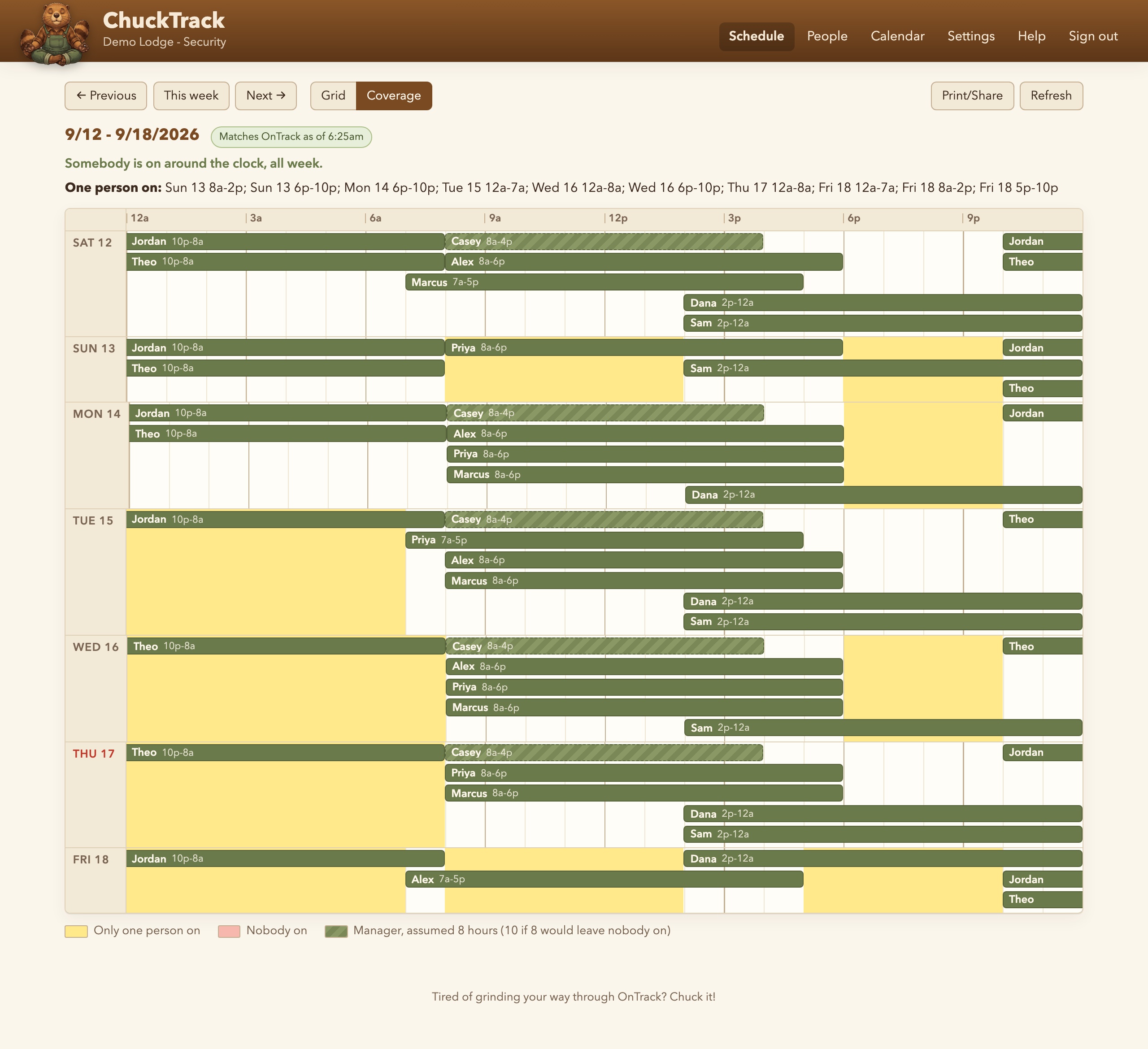
A manager's start-time marker is drawn striped, as an 8-hour shift, or 10 hours if stopping at 8 would leave nobody on. Off and other labels are not cover, and neither is someone working in another department. It includes your unsent changes, so you can check a week before it goes to OnTrack.
The week bar and the actions below it
Previous, This week and Next move between weeks, and Grid and Coverage switch how the week is laid out. Print/Share opens the export menu; see Printing, sharing and the API. Refresh reads the week from OnTrack straight away. Copy last week is a one-click way to put last week's shape onto this one as a draft.
Below the grid, for the current week and later: Send this week to OnTrack commits your draft; Copy a week in pulls the shape of any date, or a banked week, onto this one; Bank this week saves the current shape under a name so it can be dropped onto any week later, with no date attached; Publish to staff makes the week visible to employees, with mailing everyone a separate tick box, because a sent email can't be unsent.